Want to find the easiest way to organize photos on your iPhone? Don’t want to duplicate anything in the process? Or maybe you’ve already got a bunch of duplicates clogging things up?
No matter your situation, the text below will help you organize your photo library without extra copies, clutter, or confusion. We’ve tried them all ourselves, and honestly… there’s nothing complicated about it.
How to Organize Photos on iPhone Without Duplicates
OK, so we gathered four surefire ways to help you with organization. Most of these features are already on your iPhone—nothing to install, nothing technical to learn. But we’re also throwing in one tool you can grab from the App Store—because sometimes the built-in stuff doesn’t cut it.
Let’s start with the obvious one first.
1. Use the Built-In Duplicates Album in iOS Photos
This one’s super simple. Ever since iOS 16, any iPhone has a Duplicates album—and yeah, it does exactly what you think: it finds duplicate photos and groups them together so you can merge or delete them in seconds.
Here’s how to remove duplicate photos on iPhone with this feature:
- Open the Photos app.
- Scroll down to Utilities.
- Find Duplicates. If you don’t see it yet, it might not be ready. Apple’s support guide explains that your iPhone needs to index your entire photo library first. The detection process only runs when your phone is locked and connected to power.
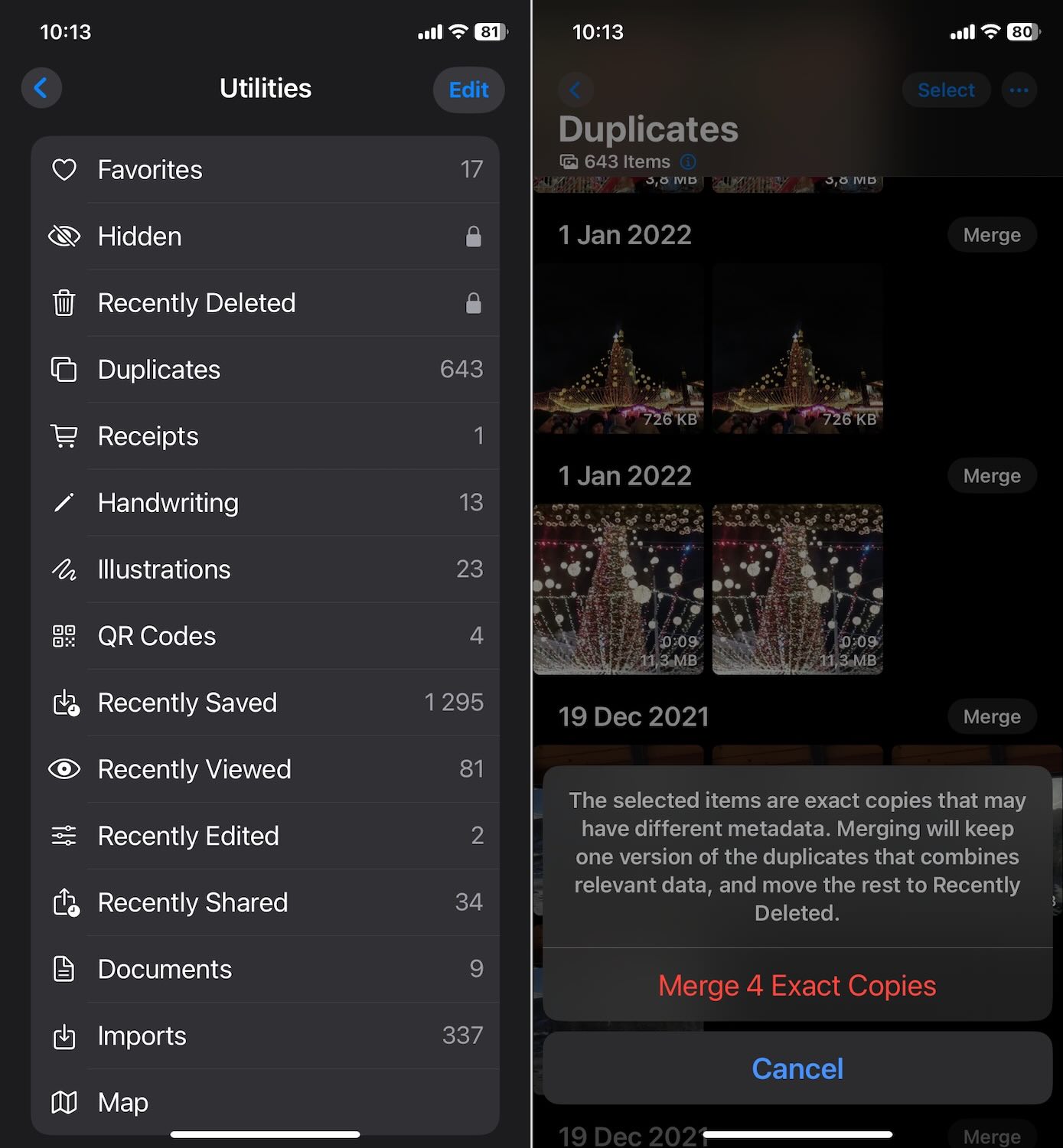
Once it shows up, you’ll see duplicate photos grouped. From there, you can:
- Tap Merge on each group (iOS keeps the best-quality version, metadata ,and all)
- Or delete extras manually if you want more control
- Or go big: tap Select All and then hit Merge (X selected) to clean up everything in one go
Your duplicates should now be sitting in Recently Deleted. Head there to remove them for good.
And that’s it, about as easy as it gets. Still, as any guide to removing duplicate photos will tell you, this built-in option only catches identical copies. So if you snapped five slightly different versions of the same selfie, or imported a huge batch from your latest trip, this tool won’t flag those. We’ll need a better tool (and we’ll get to that next).
Also, there’s a big drawback: as we mentioned earlier, your iPhone takes time to spot all the duplicates. Depending on what’s running in the background (and how massive your photo library is), the indexing process could finish fast… or drag on for a few days (!).
2. Try an AI Photo Cleaner App
The limitations of basic iPhone features often send people straight to the App Store for a better, faster fix. iPhone storage cleaner apps have been around for years, but many of them have gotten way smarter thanks to huge leaps in AI.
These tools now use machine learning to do what built-in options can’t. Instead of only flagging identical files, they analyze photos to find similar compositions, people, subjects, and scenes. This means they can help you:
- Spot and remove near-duplicate or visually similar photos (same subject, slightly different angles).
- Automatically pick the best shot based on quality, focus, or clarity.
- Bulk delete clutter like screenshots, blurry shots, or accidental snaps.
There are plenty of these apps on the App Store. Popular options include: Clever Cleaner, AI Cleaner: Clean Up Storage, and Remo Duplicate Photos Remover. You’ll find both free and paid choices, but most work similarly: they scan your library, group similar photos, and suggest which ones to remove. However, results can vary dramatically depending on how well each app’s AI identifies pictures and picks the best shots.
Still, using an AI-powered cleaner can save serious time. Instead of manually scrolling through thousands of photos, you can automate much of the heavy lifting and organize your library faster and with less effort.
One important note: AI isn’t perfect. Always review what the app suggests before deleting anything, especially if sentimental or meaningful photos are involved. Most apps simplify this by letting you skip or manually approve each group.
3. Create Custom Albums
Once the junk’s out of the way, it’s time actually to organize. And the simplest way to do that? Custom albums.
Let’s first clear up something many iPhone users seem to misunderstand (like in this Reddit thread): when you create a custom album and move photos into it, you’re NOT making a separate file. It just tags the original image to appear in that album.
So you don’t have to worry about duplicates here. One photo, one file – just showing up in more than one place.
Here’s how to make a custom album:
- Open the Photos app and tap Albums.
- Hit the little plus (+) and choose New Album.
- Give it a name – something better than Random Pics. Try Sky Photos That Should’ve Been Better or Buddy’s Weirdest Faces.
- Hit Save.
Now, to add any photo to this album at any time:
Go to your Recents (or any other section in Photos), tap Select, choose the pics you want, then tap the Share icon (that little square with the arrow). Scroll down, hit Add to Album, and then pick the one you created earlier.
4. Tap Into Apple’s Smart Albums And Features
This guide wouldn’t be complete without discussing the albums your iPhone builds for you.
Apple’s Smart Albums quietly do much of the heavy lifting in the background – no setup needed. They auto-sort your photos into categories like Screenshots, Selfies, Videos, and portraits. Every new photo gets filed instantly.
There’s also Favorites (tap the little heart to add any photo), Hidden (for the stuff you don’t want front and center), and People, Pets & Places, which use facial and location recognition to group shots by who’s in them or where they were taken.
You can’t edit or customize these albums, but you can help them get smarter. For example, you can help your iPhone identify people and pets by tapping on a face in the People & Pets album and giving it a name. iOS will start grouping future photos automatically. Over time, it gets more accurate, and you’ll barely need to do anything.
You can also lean on the Search function – it’s way more powerful than most people realize.
Type in things like:
- “beach,” “park,” or “dog”
- a combo like “2025 park”
- or even actual text that appears in the photo, like a road sign, book cover, or your scrawled grocery list

Yep, iOS can recognize visible text in photos. So if you’re trying to organize or just find something quickly, search is your secret weapon.
Final Thoughts
There’s no one-size-fits-all way to organize your photo library – but now you’ve got four solid ones that actually work.
If your library is a real mess, our honest advice? Skip straight to an AI photo cleaner. It’s the fastest way to make sense of the chaos and clear out duplicates and unnecessary waste, like random forgotten screenshots or one large 20-minute 4K video in your pocket.
And don’t sleep on Apple’s built-in features. Sure, they take a little more effort up front – but once you set up custom albums and start using Smart Albums (and search) correctly, you’ll save time and stress later. It’s one of those things that pays off every time you open your Photos app.
Photo by appshunter.io; Unsplash

Kyle Lewis is a seasoned technology journalist with over a decade of experience covering the latest innovations and trends in the tech industry. With a deep passion for all things digital, he has built a reputation for delivering insightful analysis and thought-provoking commentary on everything from cutting-edge consumer electronics to groundbreaking enterprise solutions.