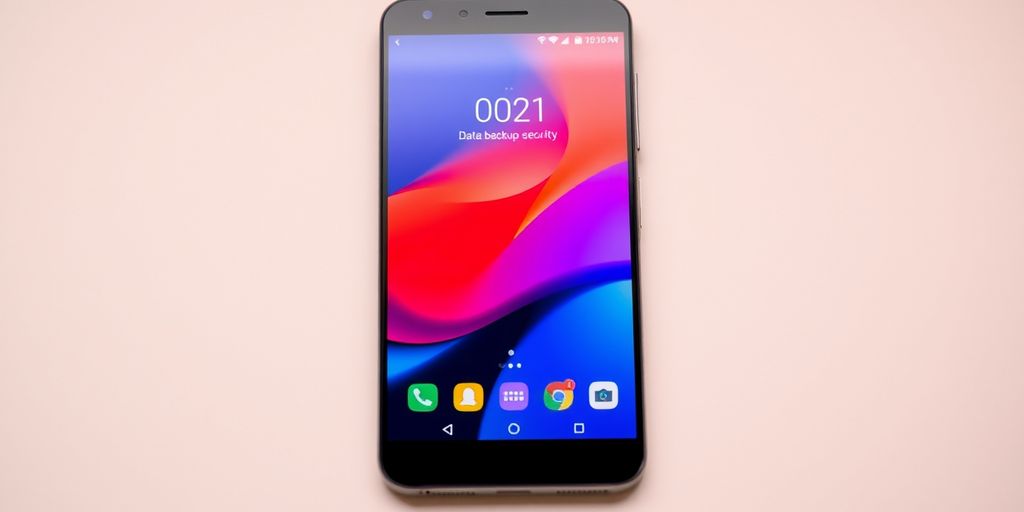
Backing up your Android phone is crucial. It keeps your data safe from unexpected events like losing your phone, accidental damage, or even cyber threats. This guide will walk you through various methods to ensure your data is secure and easily retrievable.
Key Takeaways
- Regular backups protect your data from loss or damage.
- Google services offer easy and automatic backup options.
- You can also back up your Android phone to a PC using a USB cable.
- Third-party apps provide comprehensive backup solutions.
- Cloud storage is a convenient way to keep your data safe and accessible.
Understanding the Importance of Backing Up Your Android Phone
Your phone is the guardian of your digital life. It holds precious memories, important messages, and essential data. Backing up your Android phone ensures that you don’t lose these valuable items if something goes wrong.
Why Regular Backups Are Essential
Regular backups are crucial because they protect your data against unexpected events. Whether it’s a software glitch, a hardware failure, or an accidental deletion, having a backup means you can quickly restore your information without much hassle.
Risks of Not Backing Up Your Data
Not backing up your data can lead to significant losses. Imagine losing all your photos, contacts, and important documents because your phone was stolen or damaged. Without a backup, recovering this data can be nearly impossible.
Common Scenarios Where Backups Save the Day
There are many situations where having a backup can be a lifesaver:
- Phone Theft: If your phone is stolen, a backup allows you to restore your data to a new device.
- Accidental Damage: Dropping your phone in water or breaking it can result in data loss. A backup ensures you don’t lose important information.
- Software Issues: Sometimes, updates or apps can cause problems. With a backup, you can revert to a stable state easily.
Backing up your phone is a small step that can save you from big headaches. It’s a simple way to protect your data and ensure you can always access your important information.
Using Google Services for Android Backup
Backing up your Android phone is crucial, and Google offers several services to make this process easy and efficient. Here’s how you can use Google services to back up your data.
Backing Up with Google One
Google One is a comprehensive service that allows you to back up your app data, call history, device settings, and more. To get started:
- Download and open the Google One app from the Play Store.
- Tap the Setup backup button and then choose Turn On to enable Google One backups.
- Select the data you want to back up, such as device data, messages, and photos.
- Tap Back up now to start the backup process.
Google One also offers 15GB of free cloud storage, which is plenty for most users. If you need more space, you can purchase additional storage for a small fee.
Syncing Photos and Videos with Google Photos
Google Photos is another excellent service for backing up your photos and videos. Here’s how to use it:
- Install the Google Photos app from the Play Store if it’s not already on your phone.
- Open the app and log into your Google account.
- Tap on your profile picture in the upper-right corner and select Turn on backup.
- Wait for the app to create the backup.
You can also enable automatic backups by going to Photos Settings and turning on Backup & Sync.
Restoring Data from Google Backup
Restoring your data from a Google backup is straightforward. When setting up a new Android device, you’ll be prompted to restore data from a backup. Simply follow the on-screen instructions to complete the process.
If you need to restore data to an existing device, go to Settings > Google > Backup and select the data you want to restore. This will help you get your android device back to its previous state quickly and easily.
Backing Up Your Android Phone to a PC
Backing up your Android phone to a PC is a smart way to keep your data safe. This method ensures you have a local copy of your important files, which can be handy if you ever lose your phone or it gets damaged. Here are some simple steps to help you back up your Android phone to a PC.
Using a USB Cable for Direct Transfer
The most common way to back up your Android phone to a PC is by using a USB cable. This method is straightforward and doesn’t require any special software.
- Connect your phone to the PC using a USB cable.
- On your phone, pull down the notification shade and tap on the "Charging this device via USB" notification.
- Select the "File Transfer" option from the pop-up menu.
- On your PC, a window should pop up allowing you to view your phone’s files. If not, open File Explorer and find your phone under "This PC."
- Browse through the folders and copy the files you want to back up to your PC.
Steps to Enable USB Debugging
Enabling USB debugging is necessary for some advanced backup methods. Here’s how to do it:
- Open the "Settings" app on your phone.
- Scroll down and tap on "About phone."
- Find the "Build number" and tap it seven times until you see a message saying "You are now a developer!"
- Go back to the main "Settings" menu and tap on "System."
- Select "Developer options" and turn on "USB debugging."
- Confirm the action by tapping "OK."
Manual File Transfer Methods
If you prefer a more hands-on approach, you can manually transfer files from your Android phone to your PC. This method allows you to select specific files and folders to back up.
- Photos and Videos: These are usually stored in the DCIM folder. Simply copy this folder to your PC.
- Music and Audio: Look for the Music folder and transfer it to your PC.
- Documents and Downloads: Check the Documents and Downloads folders for any important files you want to back up.
Tip: Regularly backing up your phone ensures that you always have a recent copy of your data, which can be a lifesaver in case of unexpected issues.
By following these steps, you can easily back up your Android phone to a PC and keep your data safe.
Cloud Storage Solutions for Android Backup
Using Amazon Photos for Backup
Amazon Photos is a great option for backing up your photos and videos. If you have an Amazon Prime subscription, you get unlimited photo storage and 5GB for videos. This makes it a cost-effective solution for many users. To use Amazon Photos, simply download the app, sign in with your Amazon account, and follow the on-screen instructions to start backing up your media.
OneDrive as a Backup Solution
Microsoft’s OneDrive is another excellent choice for cloud storage. With a free account, you get 5GB of storage, but if you subscribe to Office 365, you get a whopping 1TB of storage. OneDrive is seamlessly integrated with Windows, making it easy to sync files between your Android phone and your PC. Just download the OneDrive app, sign in, and start syncing your files.
Other Cloud Storage Options
There are plenty of other cloud storage solutions available. Some popular ones include:
- Dropbox: Offers 2GB of free storage and various paid plans.
- Mega: Provides 50GB of free storage with end-to-end encryption.
- Box: Comes with 10GB of free storage and is great for business use.
Each of these services has its own set of features and benefits, so you can choose the one that best fits your needs.
Using cloud storage solutions can save you from losing important data in case your phone gets lost or damaged. It’s always a good idea to have a backup plan in place.
Third-Party Apps for Comprehensive Android Backup
Top-Rated Backup Apps on Google Play
There are many third-party apps available on the Google Play Store that can help you back up your Android phone. Swift Backup and Titanium Backup are two popular choices. Swift Backup allows you to back up apps, messages, and call logs. You can even connect it to a cloud account like Google Drive to keep all your backups in one place. On the other hand, Titanium Backup is great for those who need to back up system apps and data, but it requires root access to use all its features.
How to Use Super Backup & Restore
Super Backup & Restore is another excellent app for backing up your Android phone. Here’s how to use it:
- Download and install Super Backup & Restore from the Google Play Store.
- Open the app and select the type of data you want to back up (e.g., apps, contacts, messages).
- Choose the backup location, either local storage or a cloud service.
- Tap the "Backup" button to start the process.
Features of Titanium Backup
Titanium Backup is a powerful tool for those who have rooted their Android devices. Some of its key features include:
- Backing up and restoring apps and their data
- Scheduling automatic backups
- Freezing apps to prevent them from running
- Syncing backups to cloud storage services like Dropbox and Google Drive
Using third-party apps for backup can save you a lot of time and effort, especially if you frequently switch between devices or try out new ROMs.
These apps offer a range of features that make the backup process simple and efficient. Whether you need to back up your entire system or just specific data, there’s an app out there that can meet your needs.
Creating a Full System Backup with Custom Recovery
Understanding NANDroid Backups
For those who love to tinker with their Android devices, a NANDroid backup is a must-know. This method creates a complete copy of your phone’s system and data. It’s like taking a snapshot of your entire device. If something goes wrong, you can restore everything to its previous state.
Steps to Perform a NANDroid Backup
- Unlock the Bootloader: Before you start, make sure your phone’s bootloader is unlocked.
- Install Custom Recovery: Download and install a custom recovery like TWRP.
- Boot into Recovery Mode: Turn off your phone and boot into recovery mode. This usually involves holding the power and volume down buttons.
- Select Backup: In the recovery menu, select the ‘Backup’ option.
- Choose Partitions: Select all the partitions you want to back up. For a full backup, choose all available partitions.
- Start the Backup: Swipe to start the backup process. This may take a few minutes.
Restoring from a NANDroid Backup
- Boot into Recovery Mode: Just like when you created the backup, boot into recovery mode.
- Select Restore: In the recovery menu, select the ‘Restore’ option.
- Choose Backup File: Select the backup file you want to restore from.
- Start the Restore: Swipe to start the restore process. Your phone will be restored to the state it was in when the backup was made.
A NANDroid backup is a lifesaver for those who experiment with custom ROMs and mods. If you end up with a soft-bricked device, you can simply restore your backup and get everything back to normal.
By following these steps, you can ensure that your data is safe and sound, no matter what you decide to do with your Android device.
Automating Your Backup Process
Automating the backup process on your Android phone ensures that your data is always safe without you having to remember to do it manually. This section will guide you through setting up scheduled backups, using automation apps, and understanding the benefits of automated backups.
Setting Up Scheduled Backups
Scheduled backups are a great way to make sure your data is regularly saved. Most Android phones have built-in options to schedule backups. You can set it up to back up your data daily, weekly, or monthly. Regular backups help in keeping your data up-to-date without any manual intervention.
Using Automation Apps
There are several apps available on the Google Play Store that can help automate your backup process. Apps like Tasker and Automate can be configured to back up your data at specific times or under certain conditions. These apps offer a lot of flexibility and can be tailored to meet your specific needs.
Benefits of Automated Backups
Automated backups offer several advantages. First, they save you time by eliminating the need to manually back up your data. Second, they ensure that your data is always up-to-date. Finally, automated backups can help you avoid the risks associated with forgetting to back up your data. In short, they provide peace of mind knowing that your data is always safe.
Automating your backup process is a smart move. It ensures that your data is always protected without you having to lift a finger. Whether you use built-in options or third-party apps, the key is to find a solution that works best for you.
Transferring Backups to External Storage
Backing up your Android phone to external storage is a reliable way to keep your data safe. This method involves using physical storage devices like external hard drives or SD cards. Here’s how you can do it effectively.
Preparing Your Android Phone for Backup
Before you start backing up your Android phone, it’s important to prepare your device properly. This ensures a smooth and successful backup process. Here are the steps you need to follow:
Installing Necessary Drivers
First, you need to install the right drivers for your Android phone on your computer. These drivers help your computer recognize your phone correctly. You can usually download these drivers from your phone manufacturer’s official website. Make sure to install these drivers before you proceed with the backup.
Ensuring Device Compatibility
Next, check if your Android phone is compatible with your computer. This step is crucial to avoid any data loss during the backup process. If your phone and computer are not compatible, you might face issues while transferring data.
Initial Setup Steps
Before you begin the backup, there are a few initial setup steps you need to follow:
- Connect your phone to the computer using a USB cable.
- On your phone, go to Settings > About phone and tap on the Build Number multiple times until you see a message that says, "You are now a developer."
- Go back to Settings, select System, and then Developer options. Turn on USB debugging and tap OK to confirm.
These steps ensure that your phone is ready for the backup process and can communicate effectively with your computer.
By following these steps, you can prepare your Android phone for a smooth and successful backup. This preparation helps in avoiding any potential issues and ensures that your data is safely backed up.
Restoring Data to a New Android Device
Getting a new Android phone is exciting, but transferring your data can be a bit tricky. Here’s a simple guide to help you restore your data to a new device.
Transferring Data from Backup
When you set up your new Android phone, it will ask if you want to restore data from a previous device. Make sure you’re connected to Wi-Fi and signed into your Google account. Select the backup you want to restore and enter the passcode for your old device if prompted. This will ensure all your important data is transferred.
Using Google’s Restore Feature
Google makes it easy to restore your data. During the setup process, you’ll see an option to restore your data. Choose what you want to restore, like photos, videos, contacts, and apps. You can uncheck any items you don’t want. The process might take some time, so be patient.
Manual Restoration Methods
If you prefer to do things manually, you can transfer files using a USB cable or cloud storage. Connect your old device to your computer and copy the files you need. Then, connect your new device and transfer the files. This method is useful if you have specific files you want to move without restoring everything.
Restoring data to a new device ensures you don’t lose any important information, making the transition smooth and stress-free.
Troubleshooting Common Backup Issues
Fixing Connection Problems
Sometimes, your backup might not start because of connection issues. Make sure your device is online. If you’re using mobile data, try switching to Wi-Fi for a more stable connection. Also, ensure your phone’s battery is charged. If the problem persists, check if the Google One app is installed or needs an update.
Dealing with Incomplete Backups
An incomplete backup can be frustrating. This often happens if active apps interfere with the process. Try closing all apps before starting the backup. If that doesn’t work, you might need to set a backup password. Incomplete backups can also occur if there’s not enough storage space. Check your storage and clear some space if needed.
Ensuring Data Integrity During Backup
To ensure your data is backed up correctly, make sure you’re using the right apps. For example, photos and videos should be backed up using Google Photos. If you can’t find your files, they might be saved in other apps. Always double-check the right place for your data. If your media still won’t back up, you can manually upload your files to Google Drive or Google Photos.
If your backup still doesn’t work, you can run a manual backup by uploading files and folders to Google Drive or backing up photos and videos in Google Photos.
If you follow these steps, you should be able to troubleshoot most common backup issues and keep your data safe.
Frequently Asked Questions
How do I restore my Android phone from a Google backup?
During the initial setup of your Android phone, you’ll be prompted to restore backups from previous devices. Follow the on-screen instructions to complete the process.
How can I back up my bookmarks on an Android phone?
If you use Chrome, you can sync your bookmarks by opening Chrome, tapping the three-dot menu, selecting Settings, and then Sync. Make sure the Bookmarks option is checked.
Does backing up to Google use my storage space?
Yes, it does. The only exception is with YouTube Music, which has its own upload limit of 100,000 songs.
What should I do if I didn’t back up my files and they got deleted?
There is still hope! You can use data recovery tools or services to try and retrieve lost files. Check out guides on recovering lost Android files for more help.
What is World Backup Day and when is it?
World Backup Day is a reminder to keep your important files safely stored. It is celebrated every March 31st and started in 2011.
What steps should I take before backing up my Android phone to a PC?
Ensure your devices are compatible by installing necessary drivers. Connect your phone to the PC via USB and enable USB debugging in your phone’s settings.
How do I back up my entire Android device to my computer using Acronis True Image?
Install Acronis True Image on your PC, connect your Android device, and follow the on-screen instructions to back up your entire device.
What are some top-rated backup apps for Android?
Some highly recommended backup apps include Swift Backup, Titanium Backup, and Super Backup & Restore. Each offers unique features to help you keep your data safe.

Johannah Lopez is a versatile professional who seamlessly navigates two worlds. By day, she excels as a SaaS freelance writer, crafting informative and persuasive content for tech companies. By night, she showcases her vibrant personality and customer service skills as a part-time bartender. Johannah's ability to blend her writing expertise with her social finesse makes her a well-rounded and engaging storyteller in any setting.