By the DevX Android Team — We’ve tested casting from Android to TV using Chromecast, Miracast, Roku, Amazon Fire TV, and HDMI adapters across Samsung Galaxy, Google Pixel, and OnePlus devices. All methods verified March 2026.
Casting your Android phone to your TV is easier than you might think. Whether you want to watch videos, play games, or share photos on a bigger screen, there are several methods available. This guide will walk you through different ways to achieve this, ensuring a smooth and enjoyable experience.
Key Takeaways
- Screen mirroring allows you to display your Android phone’s content on a larger TV screen.
- You can use built-in features like Google Cast or third-party apps to cast your phone to the TV.
- Devices like Google Chromecast and Miracast provide reliable options for wireless casting.
- For a wired connection, HDMI cables and adapters offer a stable and high-quality casting experience.
- Ensuring a strong Wi-Fi connection and compatible devices is crucial for a smooth casting experience.
Understanding Screen Mirroring on Android
What is Screen Mirroring?
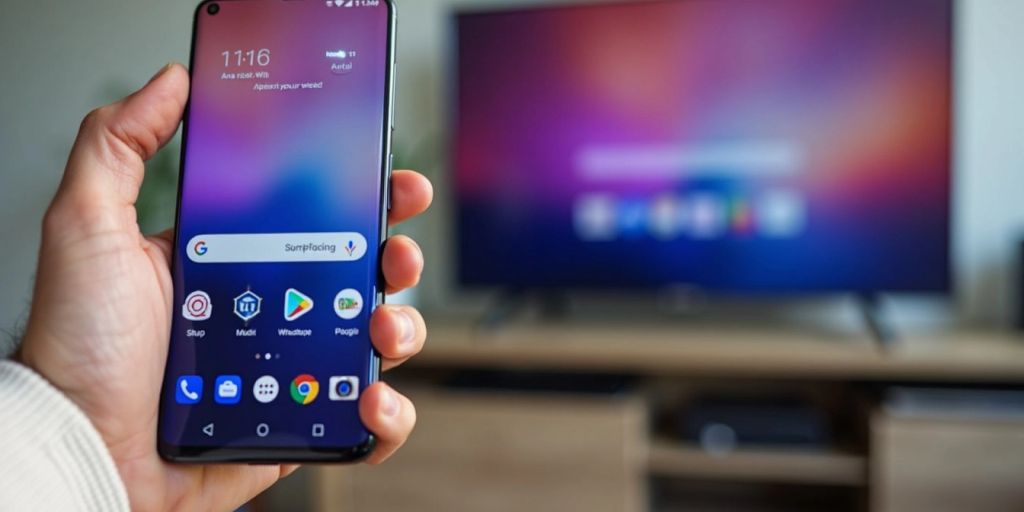
Screen mirroring is a feature that lets you display your Android phone’s screen on a larger TV. This means you can watch videos, play games, or show photos on your TV, just like you would on your phone. It’s like turning your TV into a giant version of your phone’s screen.
How Does Screen Mirroring Work?
Screen mirroring works by creating a direct connection between your phone and your TV. This can be done using wireless technologies like Wi-Fi Direct or Bluetooth. Both your phone and TV need to support screen mirroring and be on the same Wi-Fi network. This ensures a smooth and seamless display of your content.
Benefits of Screen Mirroring
There are several benefits to screen mirroring:
- Larger Display: Enjoy your content on a bigger screen.
- Convenience: Easily share photos and videos with friends and family.
- Enhanced Experience: Play games or watch movies with a more immersive feel.
Screen mirroring transforms your TV into a larger version of your phone’s screen, making it perfect for group viewing or enhancing your multimedia experience.
Using Built-In Cast Feature on Android
Steps to Enable Cast Feature
To start casting from your Android phone, follow these simple steps:
- Ensure your phone and TV are on the same Wi-Fi network.
- Open the Settings app on your Android device.
- Scroll down and select Connected devices or Connections.
- Tap on Cast or Screen mirroring.
- Choose your TV from the list of available devices.
- Tap the cast icon to start mirroring your screen.
Compatible Devices
Most modern Android phones and smart TVs support the built-in cast feature. Here are some compatible devices:
- Google Chromecast
- Smart TVs with built-in Chromecast
- Roku devices
- Amazon Fire TV
Troubleshooting Common Issues
If you encounter issues while casting, try these troubleshooting tips:
- Restart your devices: Turn off and then turn on your phone and TV.
- Check your Wi-Fi connection: Ensure both devices are connected to the same network.
- Update software: Make sure your Android phone and TV have the latest software updates.
- Re-enable casting: Turn off the cast feature and then turn it back on.
For apps like VLC Media Player, you may need to tap the cast icon in the top right corner to start casting.
By following these steps, you can enjoy a seamless casting experience from your Android phone to your TV.
Casting with Google Chromecast
Google Chromecast is a popular device that allows you to cast content from your Android phone to your TV. It’s easy to set up and use, making it a favorite for many users. Here’s how you can get started with Chromecast and make the most out of it.
Setting Up Chromecast
To begin, plug your Chromecast into your TV’s HDMI port and connect the USB power cable. Make sure your TV is set to the correct HDMI input. Download the Google Home app on your Android device and follow the on-screen instructions to connect your Chromecast to your Wi-Fi network. Ensure your phone and Chromecast are on the same network for a smooth setup.
Casting Content from Apps
Many apps like YouTube, Netflix, and Spotify have built-in support for Chromecast. To cast, open the app and tap the cast icon, then select your Chromecast device. Your content will start playing on your TV. This method is ideal for apps with copyrighted content, as screen mirroring might not work.
Advanced Tips for Chromecast Users
- Use the Google TV app to control playback, pause, rewind, or fast forward videos.
- If your phone’s battery is low, turn off the screen during playback to save power.
- For HD movies, Chromecast will play them in HD even if your phone doesn’t support HD playback.
Remember, casting is the ideal option for apps with copyrighted content, as screen mirroring might not work.
With these tips, you can enjoy a seamless casting experience with your Google Chromecast.
Miracast: A Wireless Standard for Screen Mirroring
Miracast is a wireless technology that allows you to mirror your Android phone’s screen to your TV without needing any cables. It uses Wi-Fi Direct to create a direct connection between your phone and the TV, ensuring a smooth and low-latency experience. This makes it perfect for watching videos or playing games on a bigger screen.
What is Miracast?
Miracast is a standard for wireless connections from devices like smartphones and tablets to displays such as TVs. It eliminates the need for HDMI cables, making the setup process much simpler. Miracast uses Wi-Fi Direct, which means it doesn’t require a Wi-Fi network to function.
Setting Up Miracast on Android
To set up Miracast on your Android device, follow these steps:
- Go to Settings on your Android phone.
- Select Display.
- Tap on Cast Screen.
- Choose your TV from the list of available devices.
Make sure your TV supports Miracast. If it does, you should see your phone’s screen mirrored on the TV.
Devices Supporting Miracast
Not all devices support Miracast. Some recent smartphones, like certain Motorola models, don’t support it. However, many older TVs and Android devices do. Always check your device’s specifications to ensure compatibility.
Third-Party Apps for Casting
Casting from your Android phone to your TV can be done using various third-party apps. These apps offer flexibility and additional features that might not be available with built-in options. Let’s explore some popular third-party apps and how to use them effectively.
Casting to Smart TVs with Built-In Features
Checking for Built-In Casting Features
Many modern Smart TVs come with built-in casting features, making it easy to mirror your Android phone’s screen. These TVs often support protocols like Miracast or have integrated Chromecast functionality. To check if your TV has these features, look for options like ‘Screen Mirroring‘ or ‘Cast Screen’ in the TV’s settings menu. Ensure both your TV and Android device are connected to the same Wi-Fi network for a seamless connection.
Steps to Cast to Smart TVs
- Open the settings menu on your Smart TV and navigate to the ‘Screen Mirroring’ or ‘Cast Screen’ option.
- On your Android phone, swipe down to access the quick settings panel and tap on the ‘Cast’ icon.
- Select your Smart TV from the list of available devices.
- Follow any on-screen instructions to complete the connection.
Once connected, your Android phone’s screen will be mirrored on your TV, allowing you to enjoy your content on a larger display.
Optimizing Your Casting Experience
To get the best experience while casting, follow these tips:
- Stable Wi-Fi Connection: Ensure a stable Wi-Fi connection to minimize lag and buffering.
- Update Firmware and Apps: Keep your Android device, TV, and any streaming apps up to date for better compatibility and performance.
- Adjust Screen Orientation and Resolution: Make sure your phone’s screen orientation and resolution are set correctly for optimal viewing.
For a smooth and enjoyable casting experience, always keep your devices updated and connected to a strong Wi-Fi network.
Using HDMI Cables and Adapters
Choosing the Right HDMI Cable
When it comes to connecting your Android phone to your TV, using an HDMI cable is a reliable option. Choosing the right HDMI cable is crucial for a smooth experience. There are different types of HDMI cables, such as standard, high-speed, and ultra-high-speed. For most purposes, a high-speed HDMI cable will work just fine. If you plan to watch 4K content, consider an ultra-high-speed cable.
Setting Up a Wired Connection
Setting up a wired connection between your Android phone and TV is straightforward. Follow these steps:
- Get a USB-C to HDMI adapter if your phone has a USB-C port. If your phone uses a Micro USB port, you’ll need a Micro USB to HDMI adapter.
- Connect the adapter to your phone.
- Plug one end of the HDMI cable into the adapter and the other end into your TV.
- Switch your TV to the correct HDMI input.
Your phone’s screen should now appear on your TV. This method is especially useful if you don’t have a stable Wi-Fi connection.
Advantages of Using HDMI
Using an HDMI cable to connect your phone to your TV has several benefits:
- Stable Connection: Unlike wireless methods, a wired connection is less likely to experience lag or buffering.
- High-Quality Video and Audio: HDMI cables support high-definition video and audio, ensuring a great viewing experience.
- No Need for Wi-Fi: This method is ideal if you don’t have access to a Wi-Fi network.
For those who need to connect their phone to the TV regularly, investing in a USB-C to HDMI adapter with a charging port can be a good idea. This way, you can charge your phone while using it to cast content to your TV.
Using an HDMI cable and adapter is a simple and effective way to mirror your Android phone’s screen on your TV. Whether you’re streaming videos, playing games, or giving a presentation, this method offers a reliable and high-quality connection.
Casting to Roku Devices
Casting to Roku devices from an Android phone is a straightforward process. Follow these steps to enjoy your favorite content on a bigger screen.
Casting to Amazon Fire TV
Enabling Screen Mirroring on Fire TV
To start casting from your Android phone to an Amazon Fire TV, you need to enable screen mirroring on your Fire TV. First, make sure both your Android device and Fire TV are connected to the same Wi-Fi network. Then, hold down the Home button on your Fire TV remote until a menu pops up. Select Mirroring from the menu to activate screen mirroring.
Steps to Cast from Android
- Open the Settings app on your Android phone.
- Select Connected devices and then tap on Cast.
- Look for your Fire TV Stick in the list of available devices. If you don’t see it, tap the three-dot menu in the top-right corner and check the box next to Enable wireless display.
- Select your Fire TV Stick from the list. Your phone screen should now be mirrored on your Fire TV.
- To stop mirroring, go back to the Cast menu and tap on your Fire TV Stick’s name.
Common Issues and Fixes
Sometimes, you might face issues while casting. Here are some common problems and their solutions:
- No Devices Found: Ensure both devices are on the same Wi-Fi network and within 30 feet of each other.
- Lag or Delay: A strong Wi-Fi connection is crucial. Try moving closer to the router or reducing the number of devices on the network.
- Connection Drops: Restart both your Android phone and Fire TV to refresh the connection.
For the best experience, keep your devices updated with the latest software versions. This helps in reducing compatibility issues and improves performance.
Optimizing Your Casting Experience
Casting from your Android phone to your TV can be a smooth experience if you follow some key tips. Here are some ways to ensure you get the best performance:
Ensuring Strong Wi-Fi Connection
A stable Wi-Fi connection is crucial for wireless casting. Make sure your phone and TV are on the same network. A strong network minimizes lag and buffering, giving you a smooth viewing experience.
Adjusting Screen Resolution
Adjust the screen resolution on your Android device to match your TV’s specifications. This helps avoid any distortion and ensures the content displays correctly. You can usually find these settings under Display in your phone’s settings menu.
Tips for Smooth Casting
- Update Firmware and Apps: Keep your Android device, TV, and any streaming apps up to date. Updates often include performance improvements and bug fixes.
- Close Background Apps: Close unnecessary apps running in the background to free up resources and improve performance.
- Use Quality Cables: If you’re using an HDMI cable, invest in a high-quality one to ensure reliable transmission of audio and video signals.
- Position Your Devices Properly: Place your Android device and TV close to each other to ensure a strong and consistent wireless signal.
- Experiment with Different Methods: Try different casting methods to find the one that works best for you. Each method has its own advantages.
For the best experience, always ensure your devices are updated and positioned correctly. This will help you avoid common issues and enjoy seamless casting.
By following these tips, you can optimize your casting experience and enjoy your favorite content without any hiccups.
Security and Privacy Considerations
Protecting Your Data While Casting
When casting from your Android phone to a TV, it’s important to keep your data safe. Always use a secure Wi-Fi network to prevent unauthorized access. Avoid public Wi-Fi networks as they can be less secure.
Understanding Permissions
Before you start casting, your phone will ask for certain permissions. These permissions allow the casting feature to work properly. Make sure to review these permissions carefully to understand what data is being accessed.
Best Practices for Secure Casting
To ensure a secure casting experience, follow these best practices:
- Use a strong, unique password for your Wi-Fi network.
- Keep your Android device and TV firmware updated to the latest versions.
- Disable casting when not in use to prevent unauthorized access.
- Regularly check for any unusual activity on your network.
By following these steps, you can enjoy a safe and secure casting experience from your Android phone to your TV.
Remember, security is key when using any technology feature, including casting.
More Android How-To Guides From DevX
- How To Mirror Android To TV
- How To Split Screen On Android
- How To Watch Apple TV On Android
- How To Video Call On Android
- How To Screenshot On Android
Frequently Asked Questions
Can I mirror my Android screen to other devices besides the TV?
Yes, you can also mirror your Android device to compatible devices such as laptops, tablets, and some projectors. This allows for a range of uses, from presentations to streaming content.
Is it possible to mirror my Android to my TV without Wi-Fi?
Yes, you can use an HDMI cable to create a direct, wired connection between your Android device and TV, which doesn’t require Wi-Fi.
Why can’t I mirror my Android to my TV?
There could be several reasons, such as incompatible devices, outdated software, poor Wi-Fi connectivity, or app restrictions. Troubleshooting these issues can often resolve the problem.
What is Miracast?
Miracast is a wireless standard that allows you to mirror your Android screen to your TV without cables, using Wi-Fi Direct to create a direct connection between the devices.
How do I set up Chromecast for casting?
Plug the Chromecast into your TV’s HDMI port, connect it to your Wi-Fi network, download the Google Home app on your Android device, and follow the prompts to start casting.
Are there third-party apps for casting?
Yes, apps like AllCast offer additional flexibility for mirroring your Android phone to various streaming devices, including Roku, Apple TV, and Amazon Fire TV.
What should I do if the cast icon is not showing up?
Ensure your phone and TV are on the same Wi-Fi network, and restart both devices. Also, make sure the app you’re using supports casting.
What are the advantages of using HDMI for casting?
Using an HDMI cable provides a stable, high-quality connection without relying on Wi-Fi, making it ideal for uninterrupted streaming and mirroring.

Johannah Lopez is a versatile professional who seamlessly navigates two worlds. By day, she excels as a SaaS freelance writer, crafting informative and persuasive content for tech companies. By night, she showcases her vibrant personality and customer service skills as a part-time bartender. Johannah's ability to blend her writing expertise with her social finesse makes her a well-rounded and engaging storyteller in any setting.