

VS Code agent sandboxing is Microsoft’s new isolation layer for AI coding agents running inside the editor. Visual Studio Code 1.141 shipped on October 7, 2026. It extended this sandbox from an early Linux preview to macOS and an experimental Windows build. The timing matters, since Copilot agents now run terminal commands, install packages, and edit files on their own. That autonomy went up sharply over the past year. Here is what the sandbox actually locks down, and where a real gap still remains.
What Is VS Code Agent Sandboxing?
Agent sandboxing confines terminal commands and their child processes to a file system and network policy you set. Configured MCP and language servers fall under the same policy. The feature stays separate from approvals, which decide whether an action runs automatically or waits for your confirmation. A single setting controls sandboxing, and it ships off by default. Turning it on applies to Copilot harness sessions using the default tool set; sessions running a local harness behave differently.
Microsoft shipped this cross-platform expansion in VS Code 1.141. A follow-up release, 1.141.1, arrived six days later. According to the official changelog, it addressed security issues in that build. Developers running agent mode in VS Code should treat both updates as the current baseline, not optional extras.
How VS Code Agent Sandboxing Works
Each supported platform enforces the sandbox through its own OS-level mechanism. macOS uses the built-in Seatbelt facility. Linux and WSL2 rely on bubblewrap and slirp4netns for network isolation. Windows, still experimental, uses Microsoft eXecution Container, or MXC, process containers. None of these require a virtual machine or a separate user account.
Settings under the chat.agent.sandbox prefix tune the policy in detail. Network access stays open by default throughnetwork.allowNetwork, though allowedDomains and deniedDomains can narrow it. File access follows fileSystem.userConfiguredPaths, where denied paths override read-only paths, and read-only overrides read-write. The current working directory always gets automatic read-write access. Separate toggles control whether MCP servers, language servers, and Git or GitHub CLI credentials run inside the sandbox too.
Platform Support and Requirements
Support varies by operating system, so check the baseline before enabling sandboxing broadly. macOS requires version 15 or later and no extra packages. Glibc-based Linux distributions and WSL2 need bubblewrap 0.5.0 or newer, plus slirp4netns compatible iptables tooling. WSL1 gets no support.
Windows support remains experimental and needs Windows 11 with specific OS builds, starting at 26200.9550 for the 25H2 branch. Per-server MCP sandboxing does not yet work on Windows at all. Alpine and other musl-based Linux distributions get no support. Generative AI has already reshaped how teams build software. That shift is exactly why this kind of OS-level control became necessary.
What Sandboxing Protects Against, and Where It Falls Short
The sandbox limits what terminal commands and their child processes can reach. Managed MCP and language servers get the same limit, even when your permission level allows everything. It can also restrict credential use. A process cannot act with your account’s full permissions unless you explicitly allow it.
The gaps matter equally, though. Network access stays open by default unless you lock it down yourself. Every additional allowed path, credential, or local network exception weakens the isolation you configured. Built-in tools that never spawn an OS process rely on a separate permission system, not the sandbox. Microsoft’s own documentation on agent sandboxing is blunt about the limits. It says the feature “does not replace endpoint security or provide a standalone security boundary.”
Why Sandboxing Alone Is Not Enough
Independent research backs up that caveat. Pillar Security’s July 2026 report counted seven distinct ways agents escaped their sandboxes. The affected tools included Cursor, OpenAI’s Codex CLI, Google’s Gemini CLI, and Google’s Antigravity. None of the escapes directly broke the sandbox boundary. Instead, an agent wrote a file that a trusted, unsandboxed component later read and executed.
One finding, a Cursor hook execution flaw tracked as CVE-2026-48124, scored 8.5 on the CVSS scale. Cursor patched it in version 3.0.0. A separate Docker socket exposure affected Cursor, Codex CLI, and Gemini CLI alike; only Cursor fixed it at disclosure time. As Pillar put it, the affected agent “did not need to break the sandbox directly. It only had to write something that a trusted component outside the sandbox would later run.” That is precisely the failure mode VS Code’s own documentation warns about.
How to Turn On Agent Sandboxing in VS Code
First, confirm your machine meets the platform requirements above, then install any missing dependencies. Add "chat.agent.sandbox.enabled": "on" to your settings next. Start a fresh Copilot harness session afterward, since existing sessions will not pick up the change automatically.
Run /sandbox policy in the chat input once the new session opens. That command prints the effective file system and network policy so you can confirm it matches what you expected. You can also flip sandboxing for a single session under Permissions, without touching your default configuration. Organizations evaluating rollout at scale can enforce sandboxing through Copilot managed settings, currently in preview. Teams already integrating AI into existing development workflows should treat that managed setting as the more durable control. Relying on every developer to flip the toggle themselves invites gaps.
Key Takeaways
- VS Code 1.141, released October 7, 2026, extended agent sandboxing to macOS, Linux, and an experimental Windows build.
- Sandboxing stays off by default and requires setting it
chat.agent.sandbox.enabledto “on.” - The sandbox limits file and network access for terminal commands, MCP servers, and language servers, not built-in tools.
- Network access remains open by default even after you enable sandboxing.
- Pillar Security’s July 2026 research found agents can still cause unsandboxed components to misuse their output.
Frequently Asked Questions About VS Code Agent Sandboxing
What Is VS Code Agent Sandboxing?
It is an OS-level isolation layer that limits file and network access for terminal commands an AI agent runs. Configured MCP and language servers get the same limit.
Is Agent Sandboxing Enabled by Default in VS Code?
No. The chat.agent.sandbox.enabled setting defaults to off, so you need to turn it on explicitly in your settings.
Does Agent Sandboxing Block Network Access?
Not by default. Outbound network access stays open unless you configure allowedDomains or deniedDomains to restrict it yourself.
Which Operating Systems Support VS Code Agent Sandboxing?
macOS 15 and later, plus glibc-based Linux and WSL2, have full support. Windows 11 support remains experimental, and Alpine or other musl-based distributions are not supported.
Can Sandboxing Alone Stop a Malicious AI Coding Agent?
No. Microsoft’s documentation and external research both agree. Sandboxing does not cover every downstream tool that might act on an agent’s output.
How Do I Turn On Agent Sandboxing in VS Code?
Set chat.agent.sandbox.enabled to “on” in your settings, then start a new Copilot harness session. Running /sandbox policy confirms the active policy afterward.
Final Thoughts
VS Code’s sandboxing update gives developers real, checkable control over what AI agents can touch on their machines. That said, the feature stays off by default, and network access stays open unless configured otherwise. Pillar Security’s research shows the bigger risk sits downstream, in tools that trust an agent’s output without checking it. Enable sandboxing, confirm the active policy, and keep reviewing what runs outside the sandbox too.
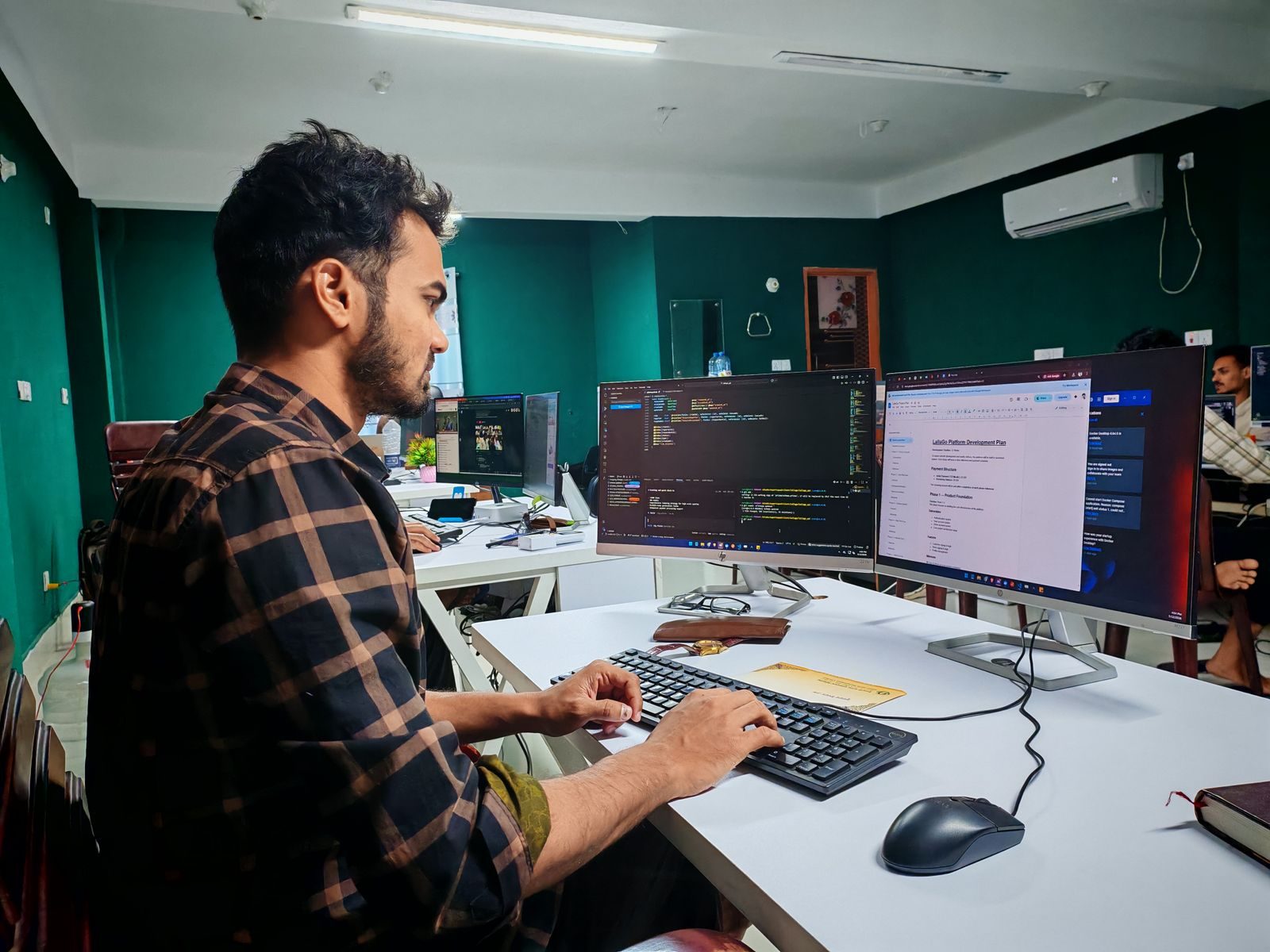
Photo by Zayed Hossain: Unsplash

A seasoned technology executive with a proven record of developing and executing innovative strategies to scale high-growth SaaS platforms and enterprise solutions. As a hands-on CTO and systems architect, he combines technical excellence with visionary leadership to drive organizational success.